Overview
If your HMRC authentication has not been completed or you need to re-authenticate your account, follow the steps below to complete the HMRC authentication or re-authentication process in iCustoms using your HMRC Government Gateway credentials
Steps to Authorise with HMRC
Click on Settings under Configurations in the sidebar to manage your preferences.
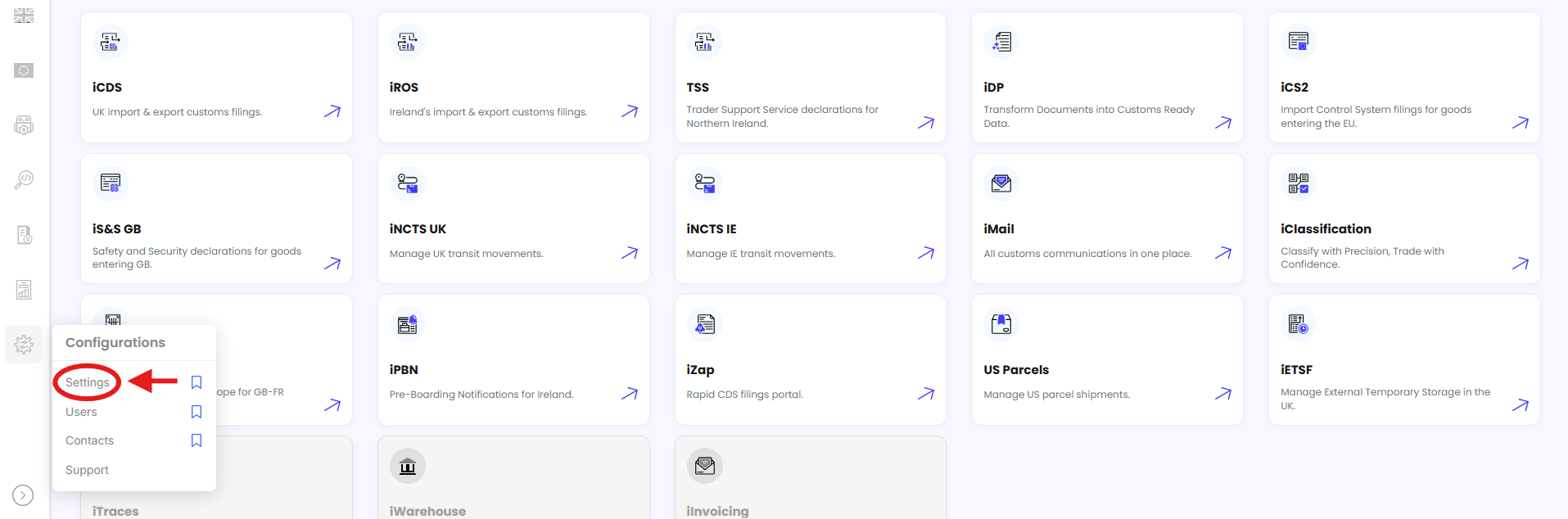
Click on the Authentications tab to find all user authentication options.

Click on HMRC User Authentication button to begin the HMRC authentication process.

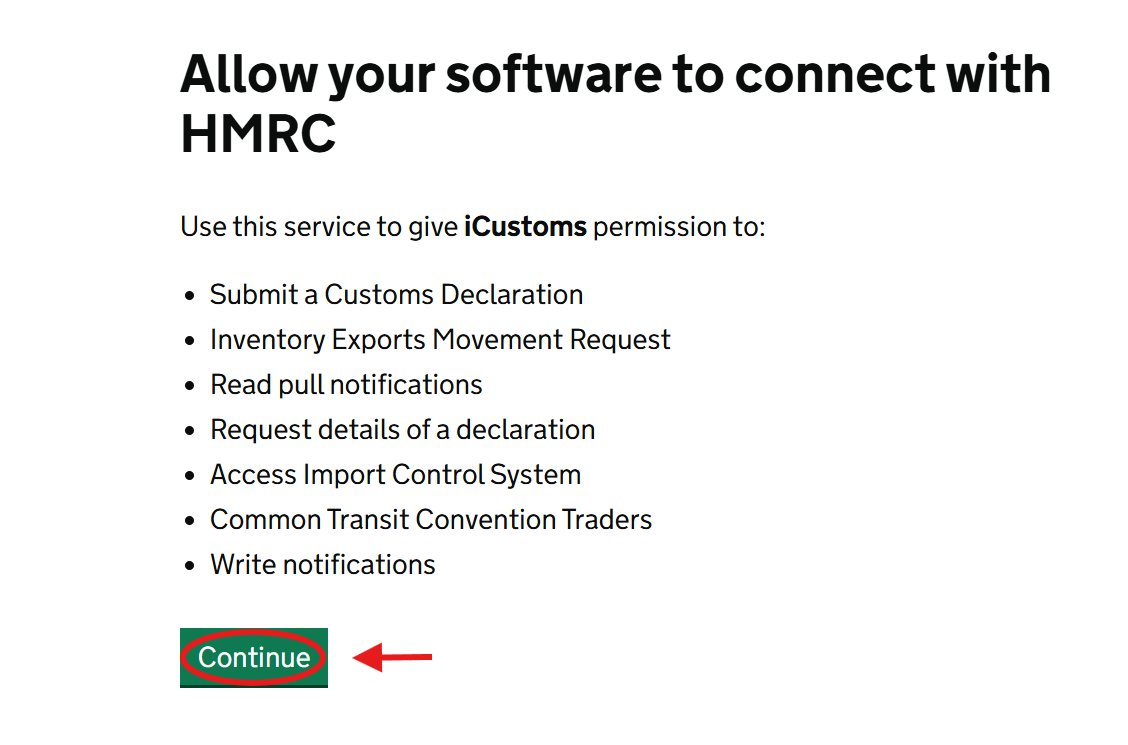
You will now be redirected to the HMRC Authentication page, Click the Continue button to grant permission and connect your software with HMRC.
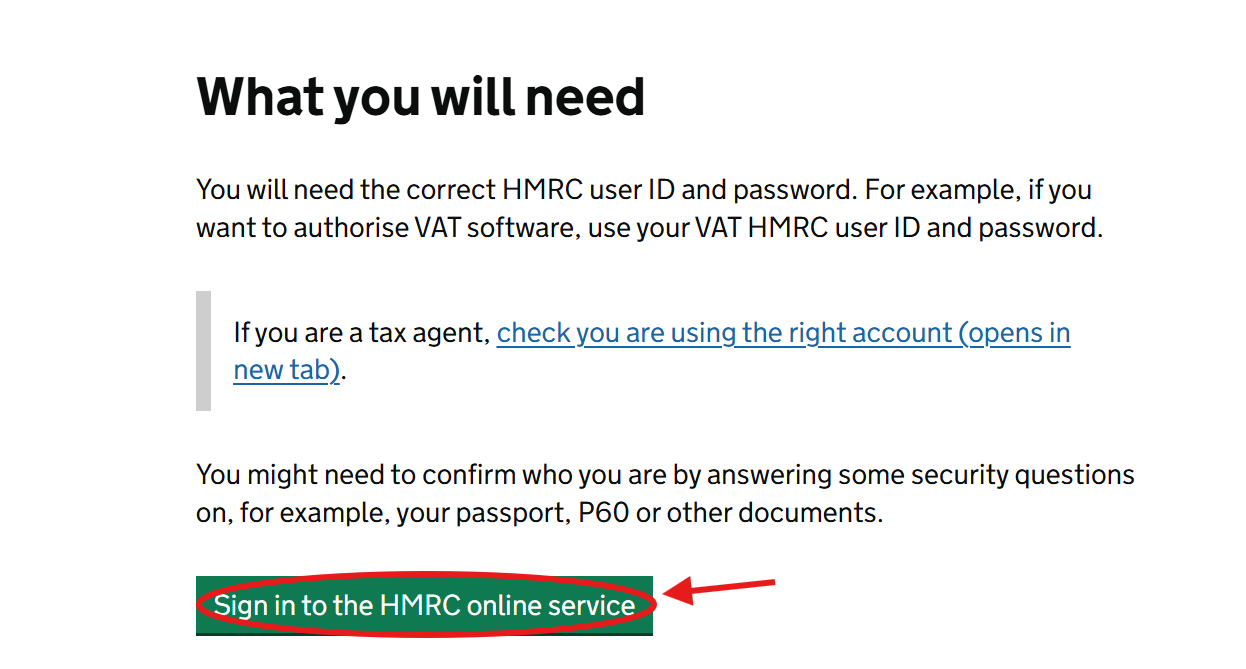
Click the Sign in to the HMRC online service button to proceed with your login.
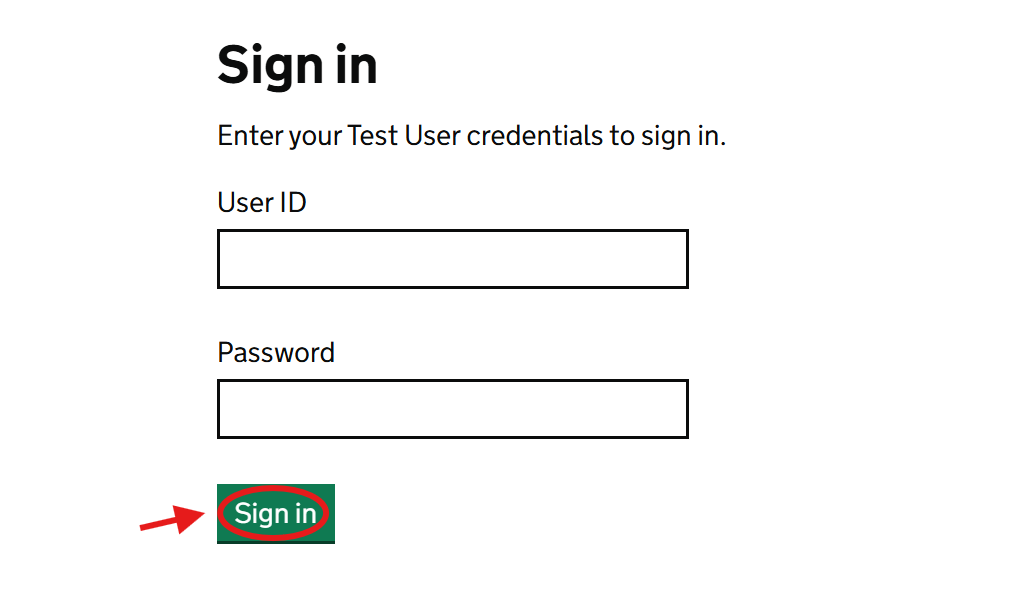
Enter your Government Gateway credentials
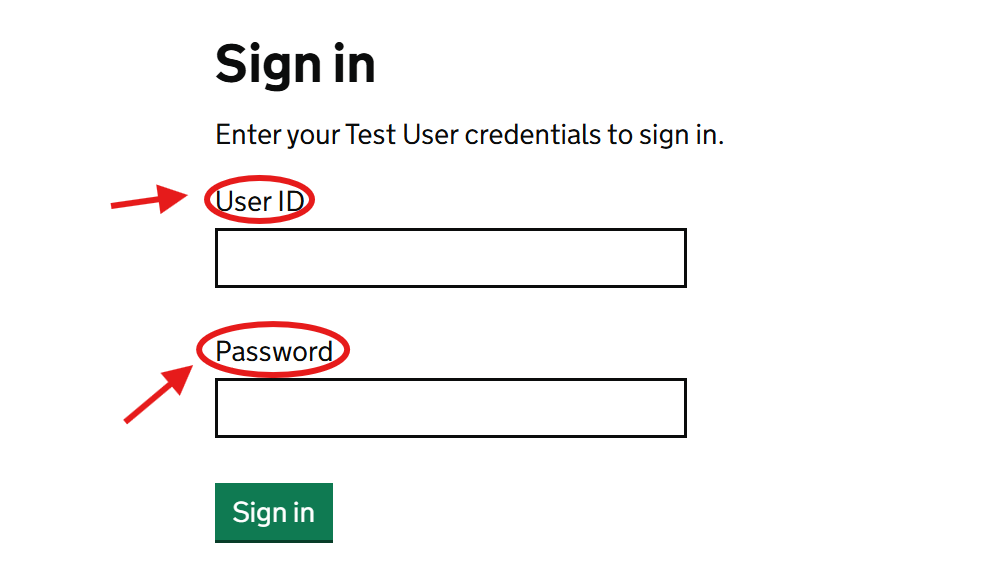
Once you have entered your credentials, click Sign in to continue.
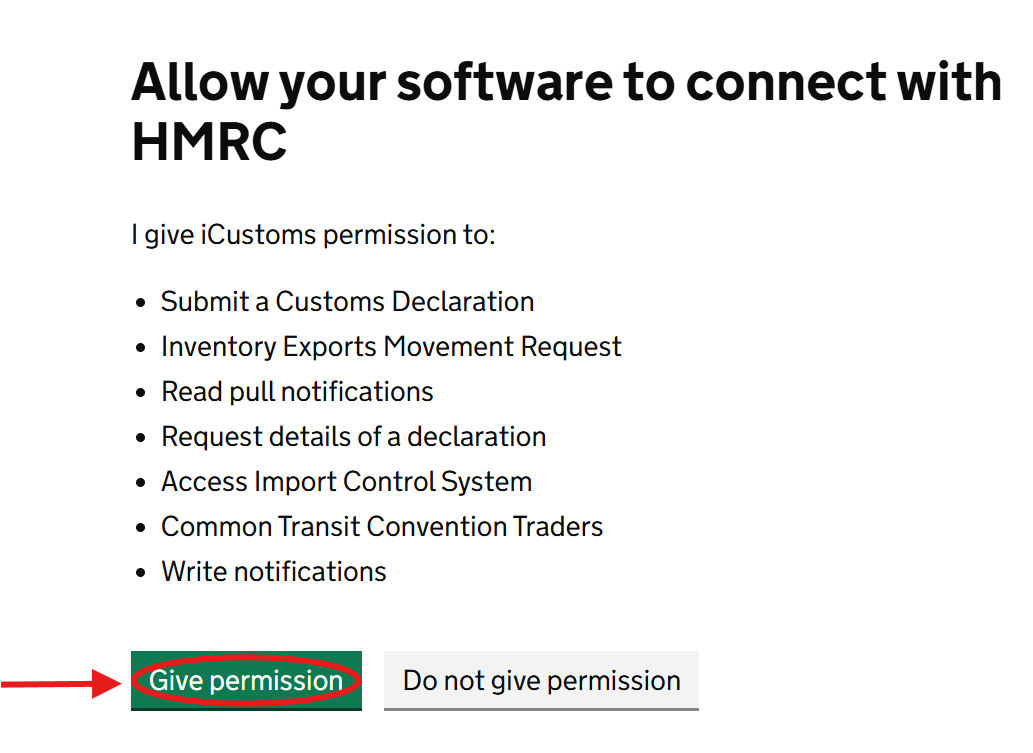
You will now be asked to give permission for iCustoms to connect with HMRC, Click Give Permission to continue.
Once the process is complete, you will be redirected back to iCustoms, Check that your HMRC authentication status has been successfully updated, And that’s it — your HMRC authentication or re-authentication is now complete.

Note:
- For Safety & Security GB declarations, ensure you use your organisation’s EORI linked to the HMRC Government Gateway account
Need Help?
If you need assistance with HMRC authorisation or re-authorisation, contact the iCustoms Support Team: Contact Support Team
Was this article helpful?
That’s Great!
Thank you for your feedback
Sorry! We couldn't be helpful
Thank you for your feedback
Feedback sent
We appreciate your effort and will try to fix the article