Overview
The Templates feature in iCustoms allows you to create reusable templates for declarations. When creating a template, you can select the declaration type, configure the required fields, and enable Zero Touch to automate the declaration filing process.
To create a new template:
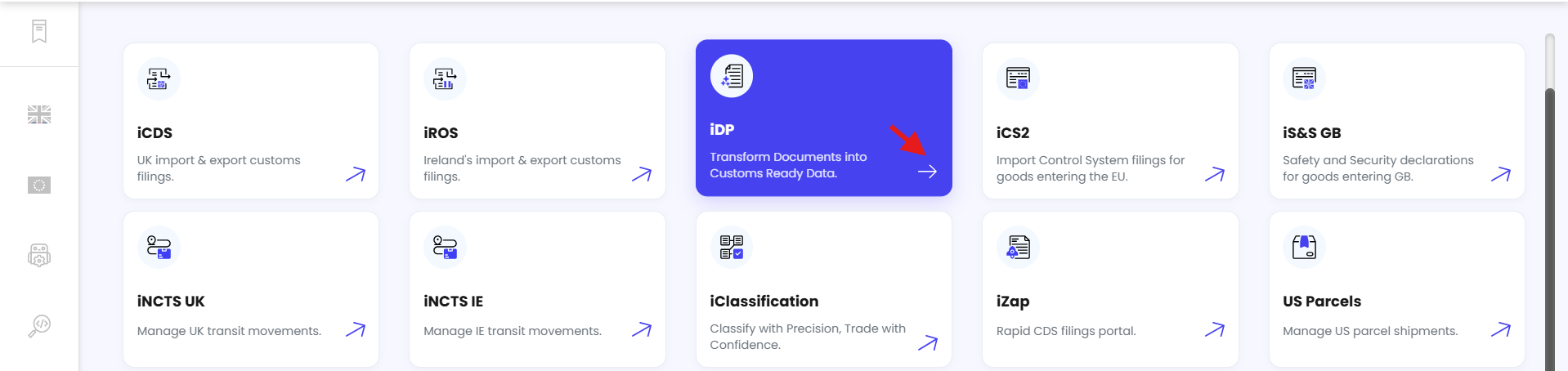
From the Dashboard, click iDP.
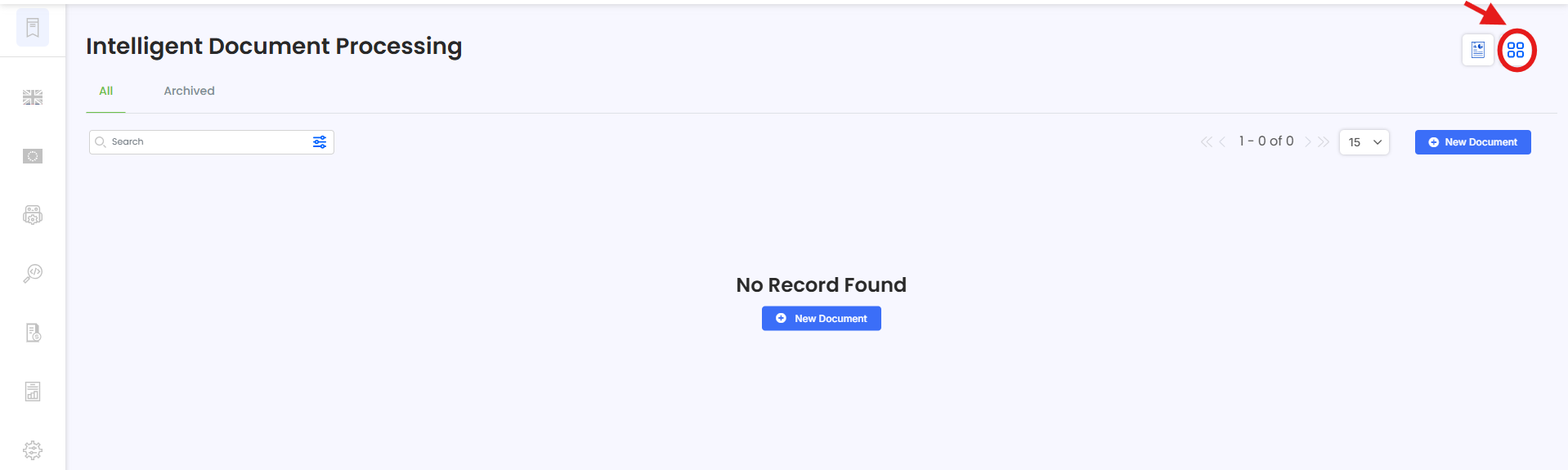
Go to the Dashboard and click the Action Menu.
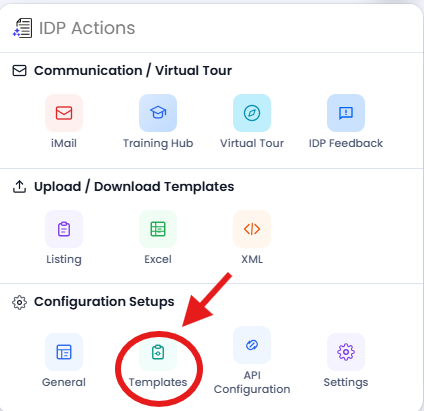
Select Template.
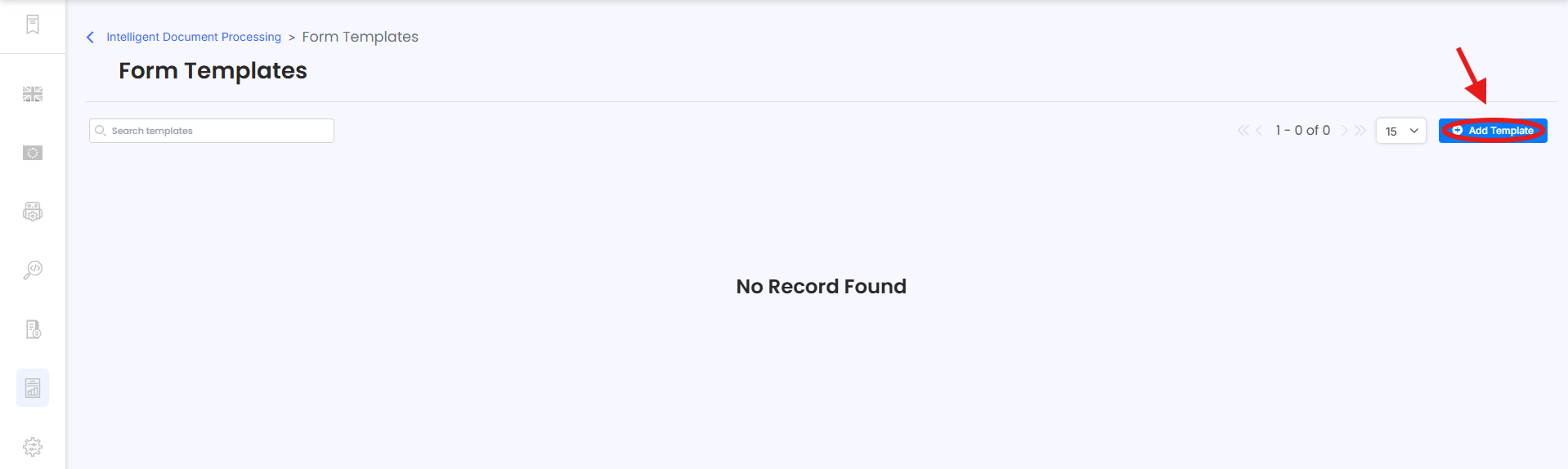
Click Add Template.
Enter a Template Name.
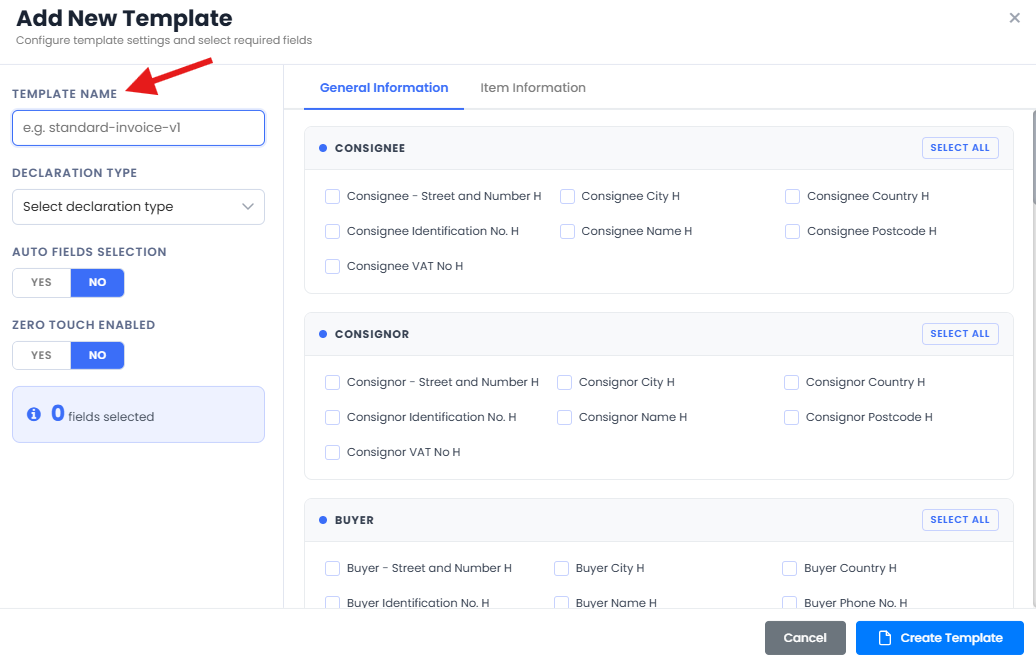
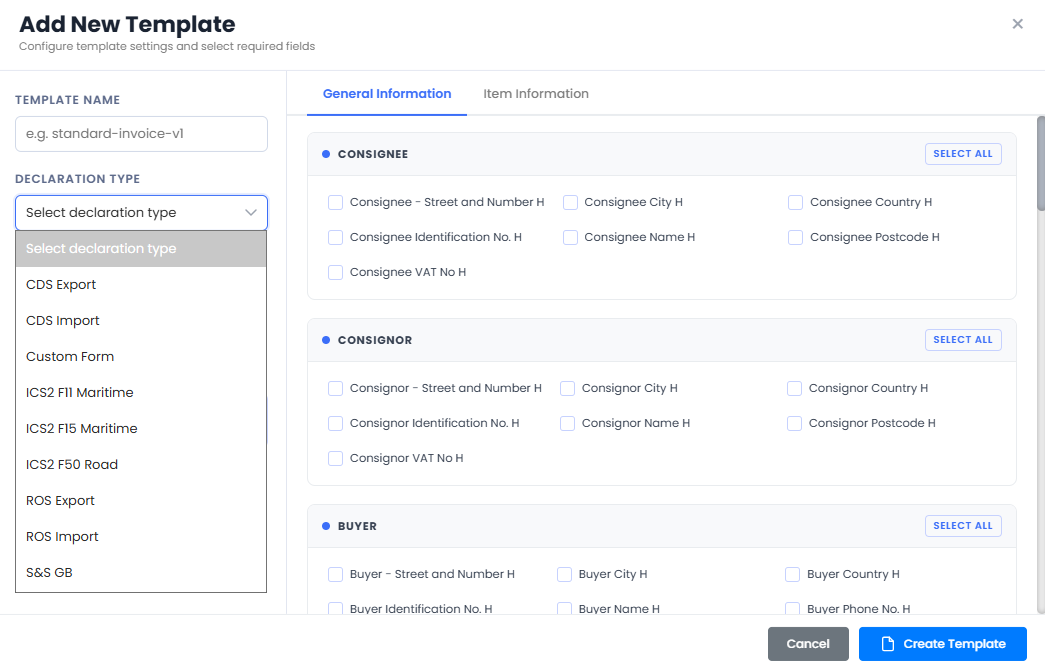
Select the relevant Declaration Type.
Once you select the declaration type, the system will automatically select the fields required for that declaration type.
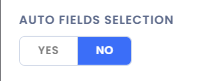
Configure Auto Field Selection by choosing Yes or No:
Yes – The system will use the fields automatically selected based on the declaration type.
No – You can manually select/remove any additional fields as required.
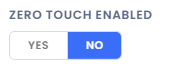
Configure Zero Touch Enabled by selecting Yes or No:
Yes – Once a draft declaration is created and passes validation, it will be automatically filed.
If the validation fails, the declaration will move to In Progress, where you can resolve the issue and file it manually.
No – The declaration will not be filed automatically. You will need to use the three-dot Action Menu to file the declaration manually.
Once all the required settings are configured, save the template to make it available for future declarations.
Need Help?
If you need assistance creating or configuring a template, contact the iCustoms Support Team: Contact Support Team
Was this article helpful?
That’s Great!
Thank you for your feedback
Sorry! We couldn't be helpful
Thank you for your feedback
Feedback sent
We appreciate your effort and will try to fix the article