Overview
The iDP (Intelligent Document Processing) section allows you to upload documents to iCustoms and automatically extract relevant information from them.
You can upload supported documents, review the document type selected by iCustoms, change the document type if required, and use options such as View Only, Combine, and Templates before submitting the document.
To upload a document in iDP:
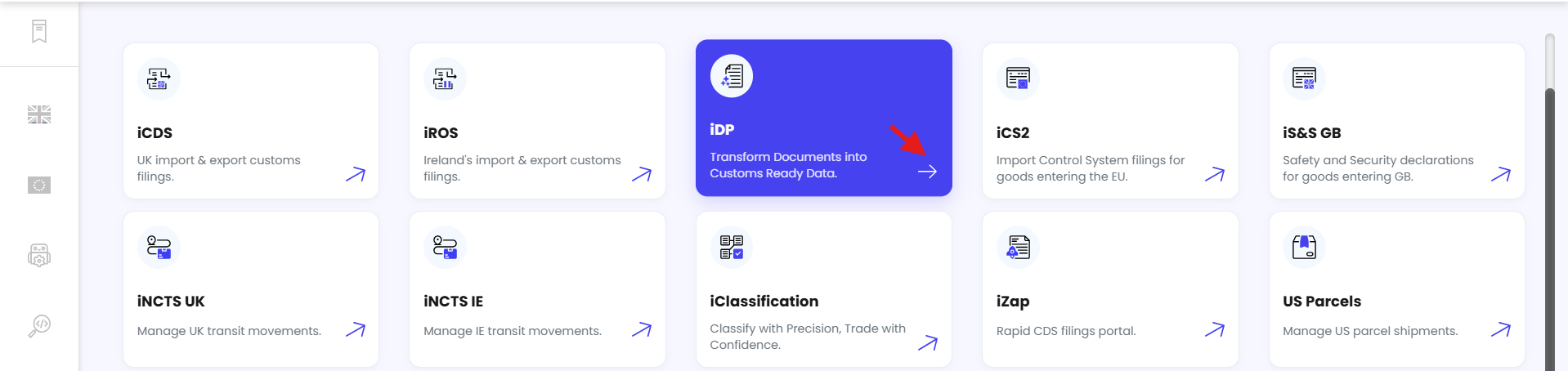
From the Dashboard, click iDP.
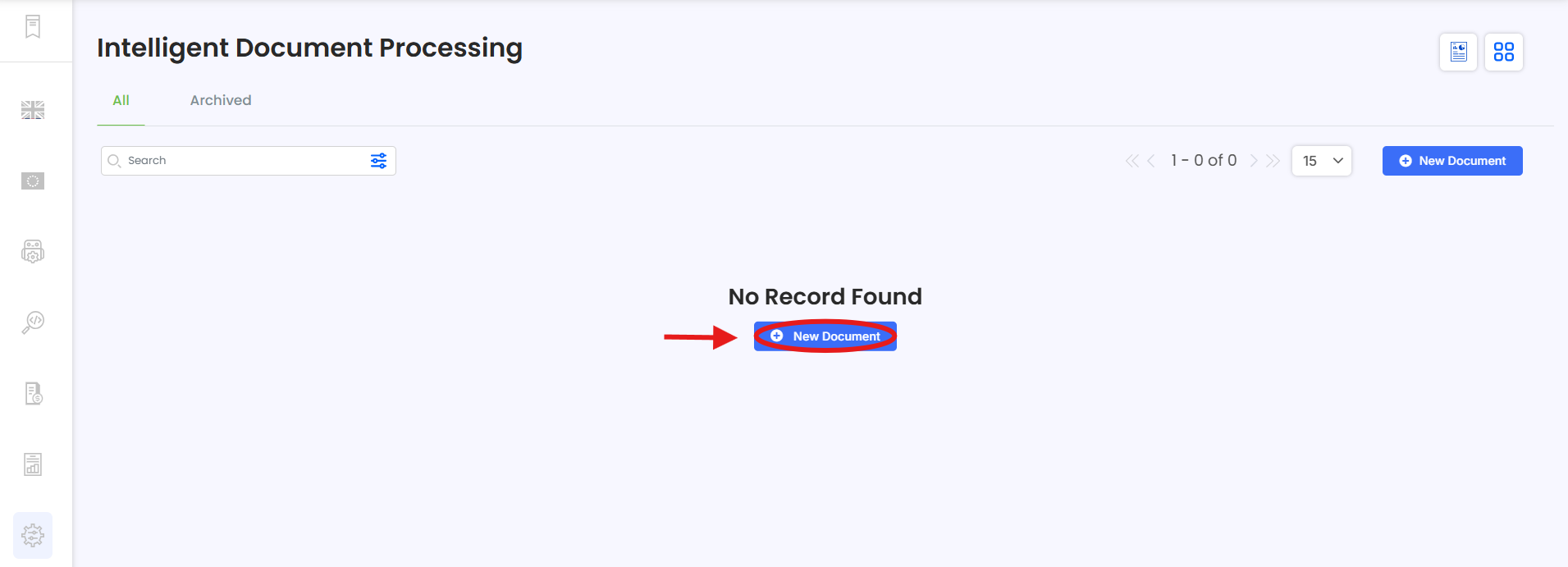
Click New Document.
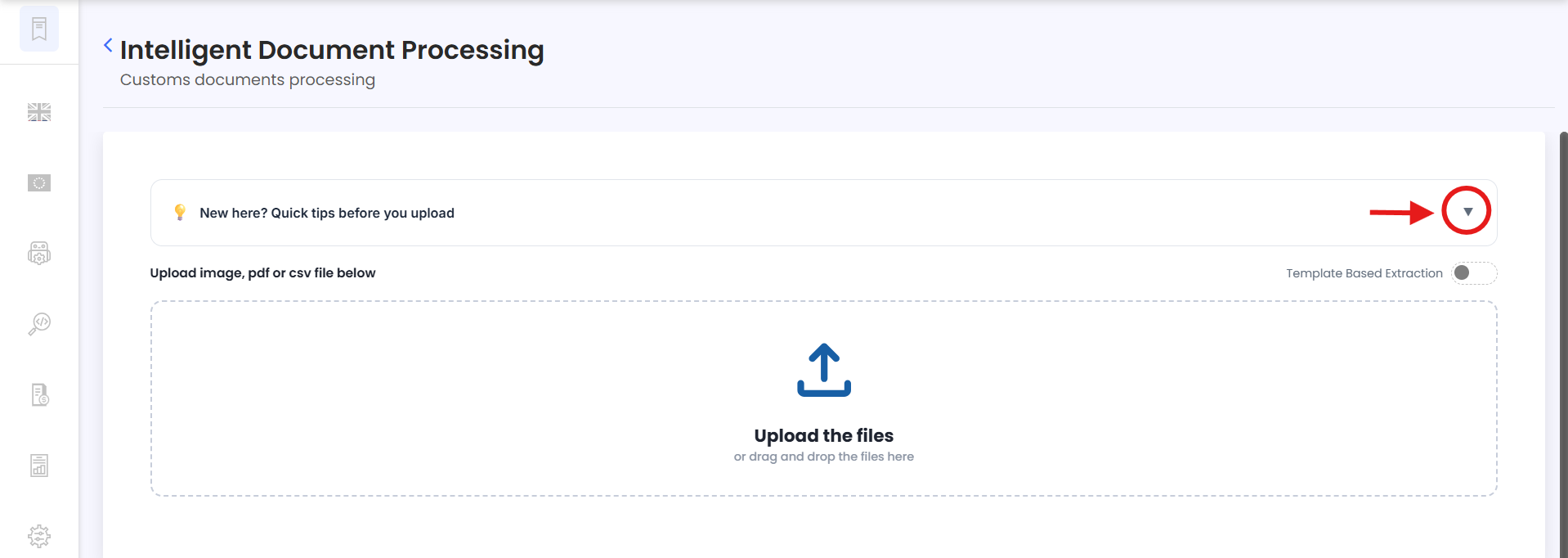
Click the dropdown to view the document upload instructions. This will show you the supported file types and formats that can be uploaded.
Click Upload Files.
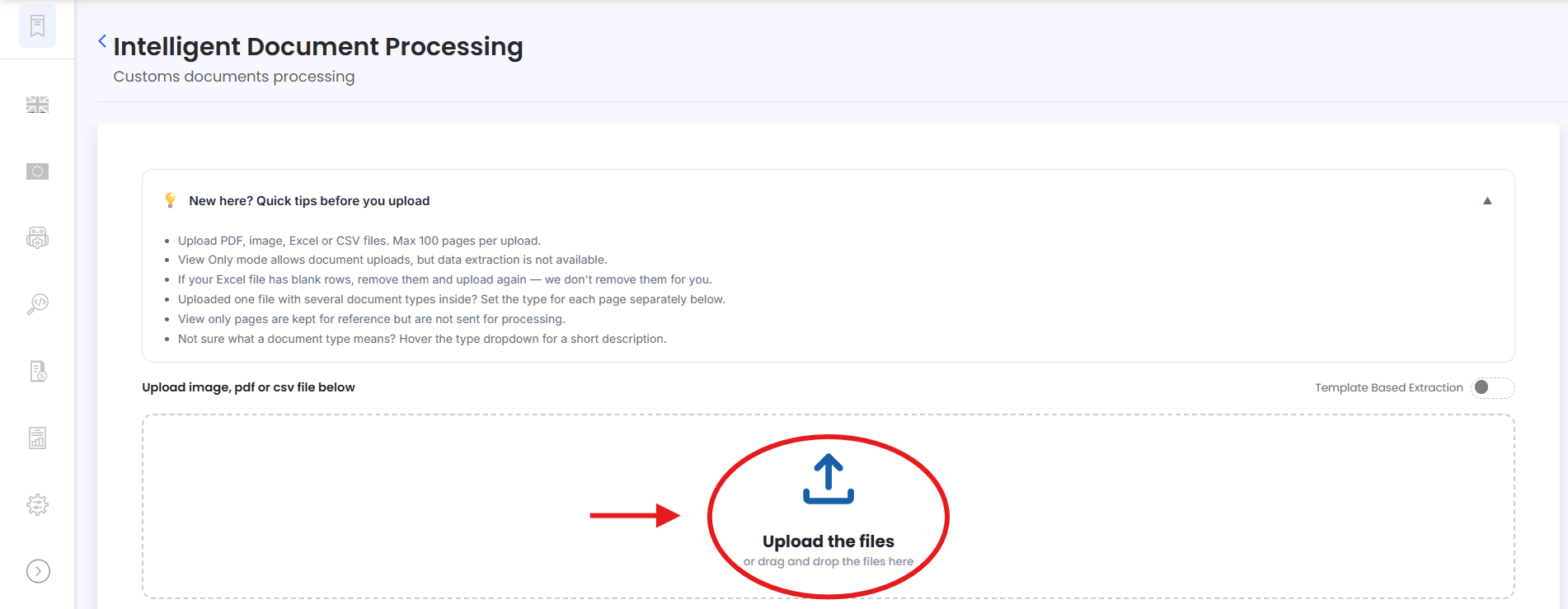
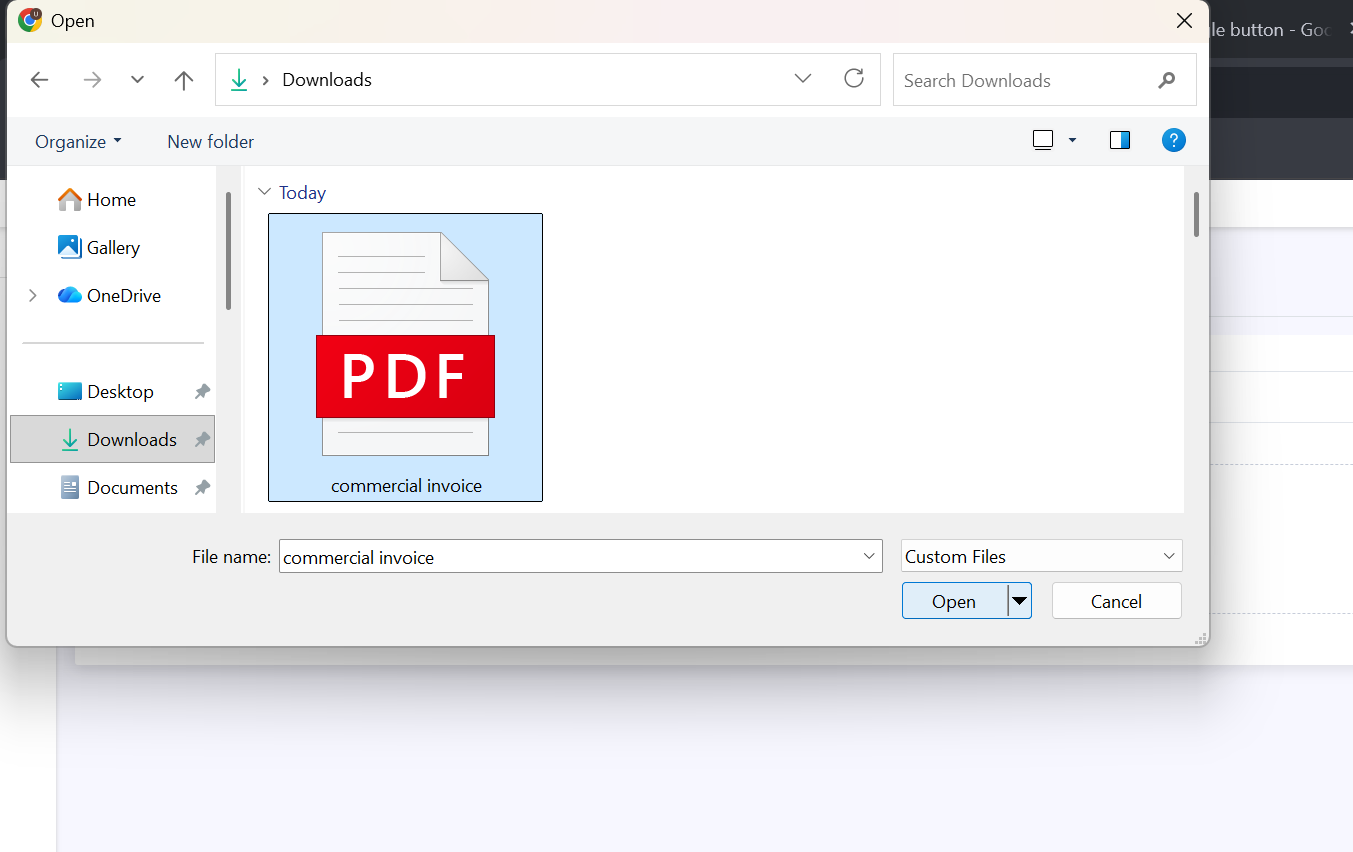
Select the document you want to upload from your device.
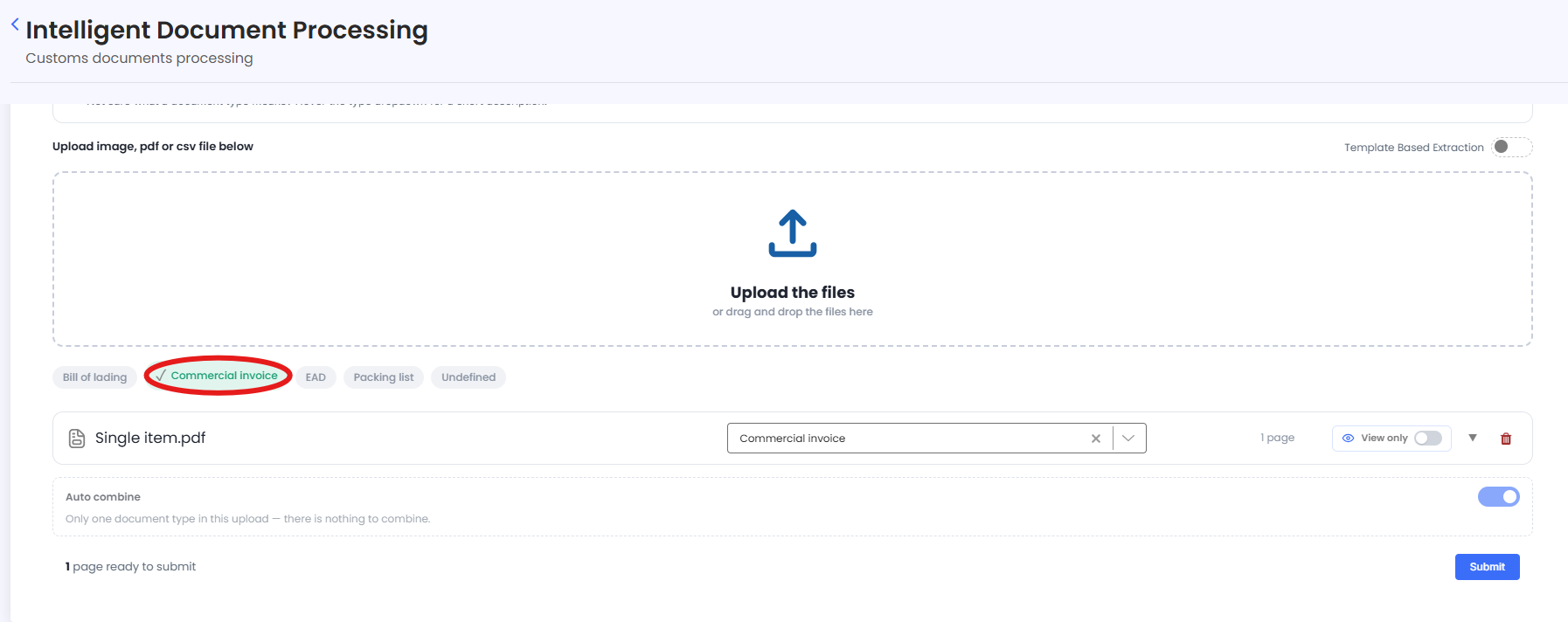
Once the document is uploaded, iCustoms will automatically identify the Document Type. The selected document type will be displayed in green.
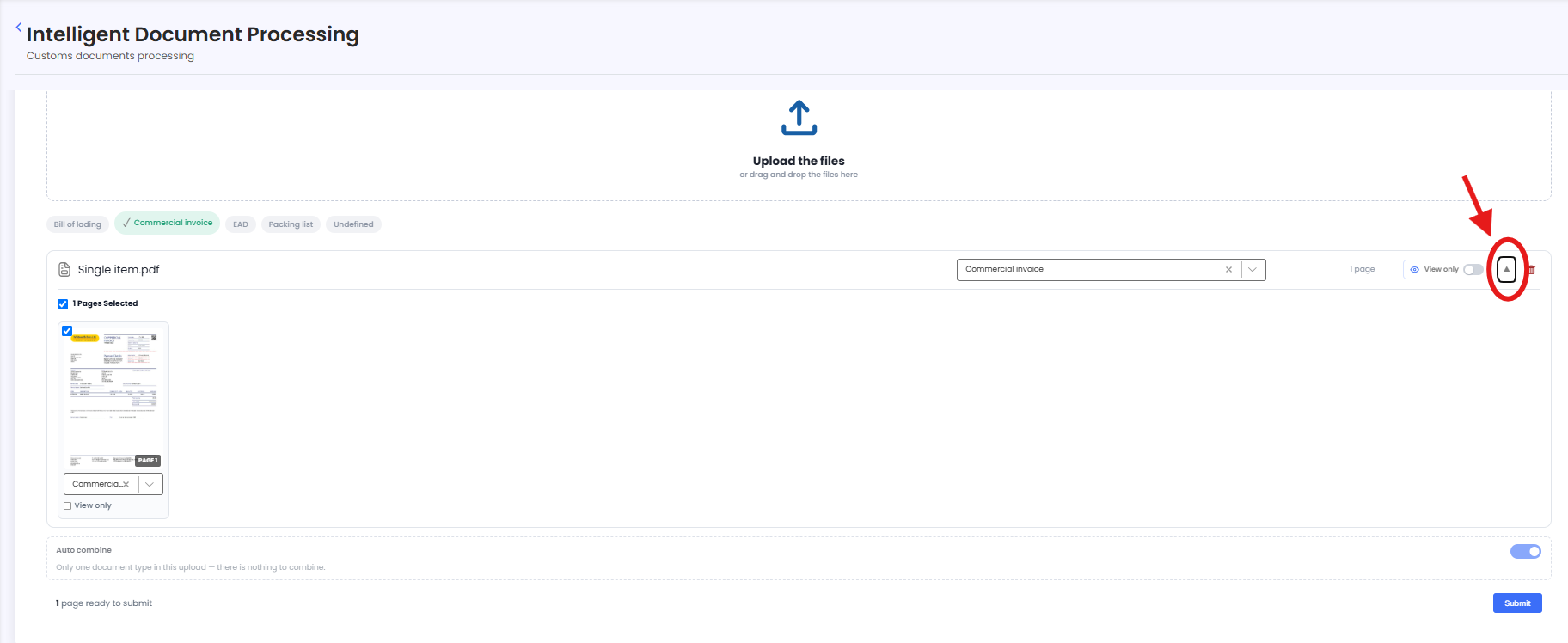
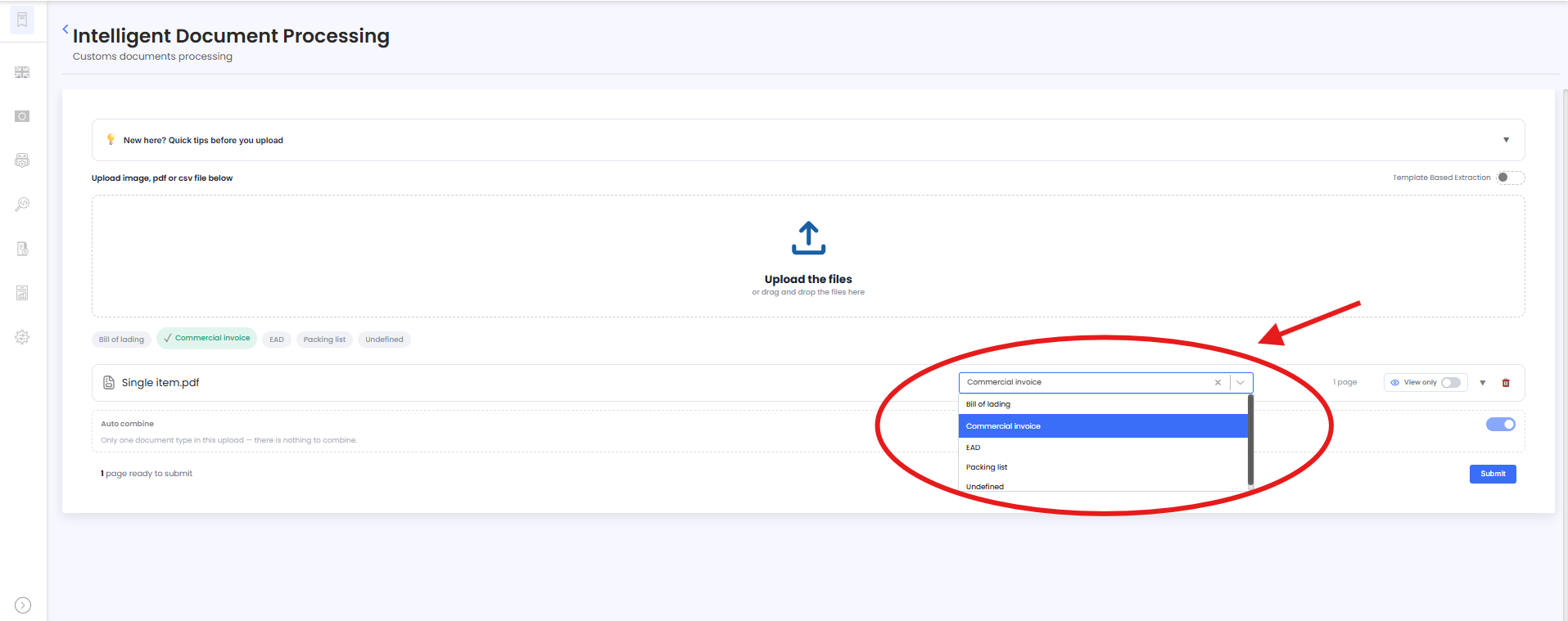
Click on the dropdown to view the detected document type for each page.
If you believe the selected Document Type of all the Pages is incorrect, you can change it using the Document Type dropdown.
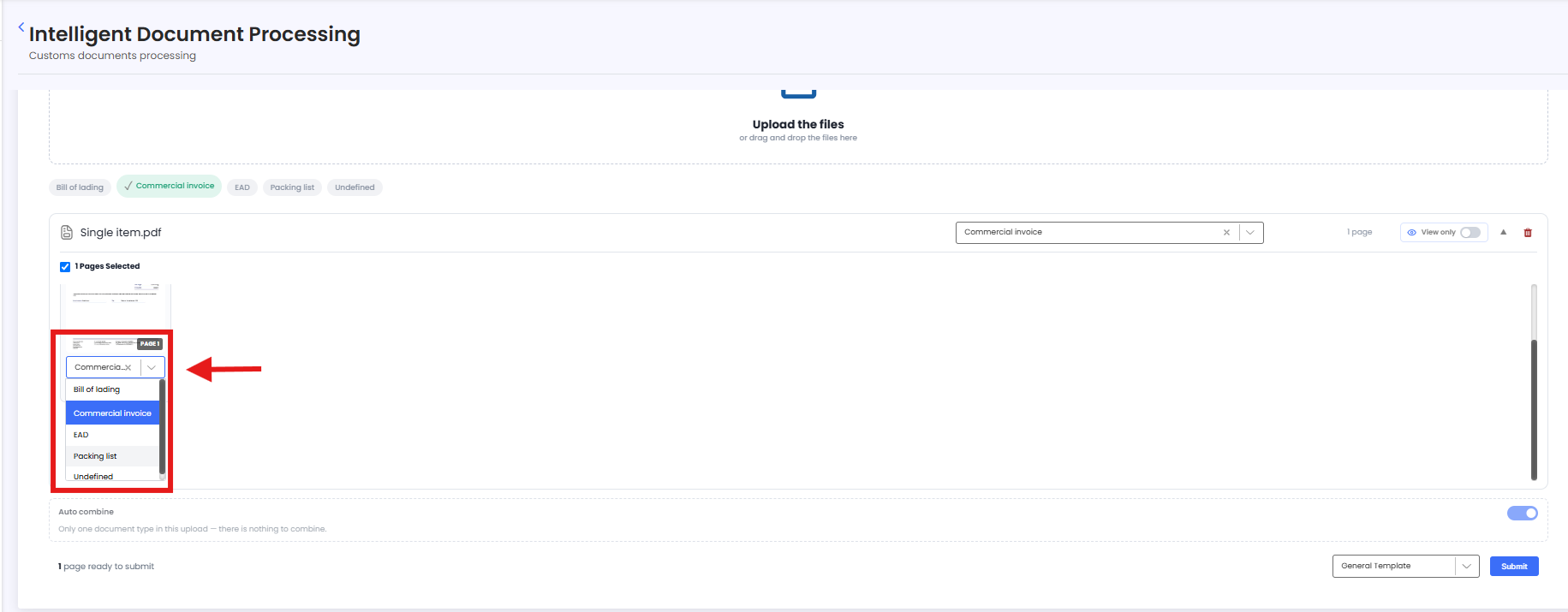
If you believe the selected Document Type of the Page is incorrect, you can change it using the Document Type dropdown.
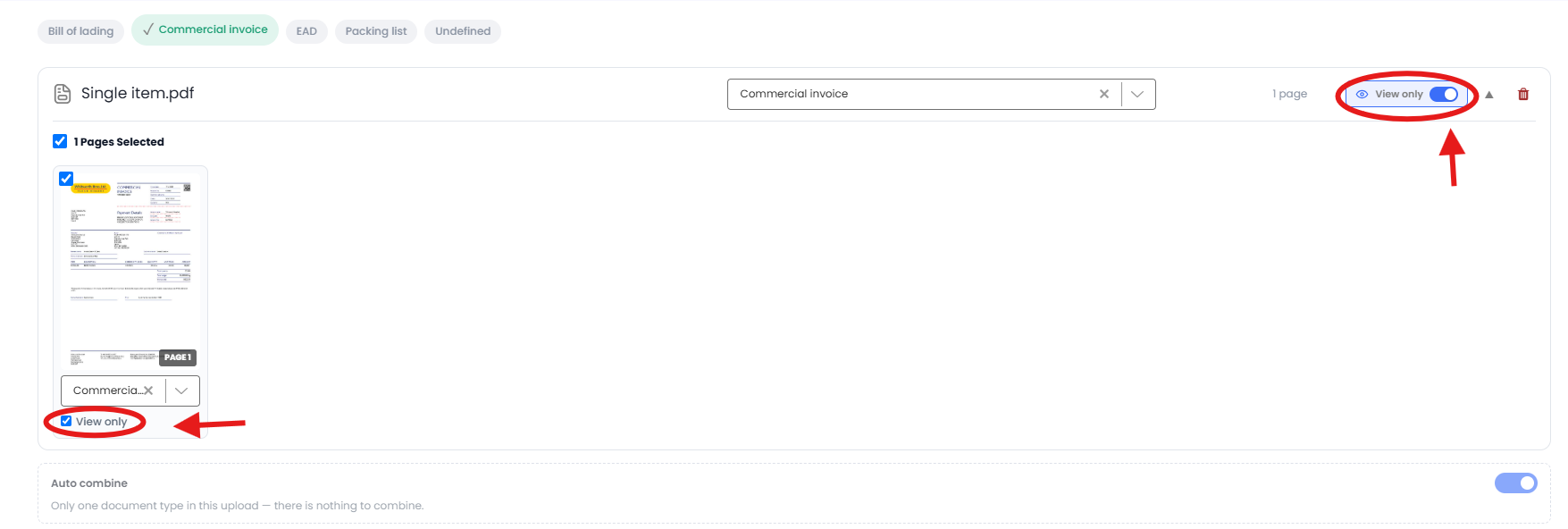
If you want to upload the document for viewing only and do not want its data to be processed, enable the View Only checkbox or click the toggle button.
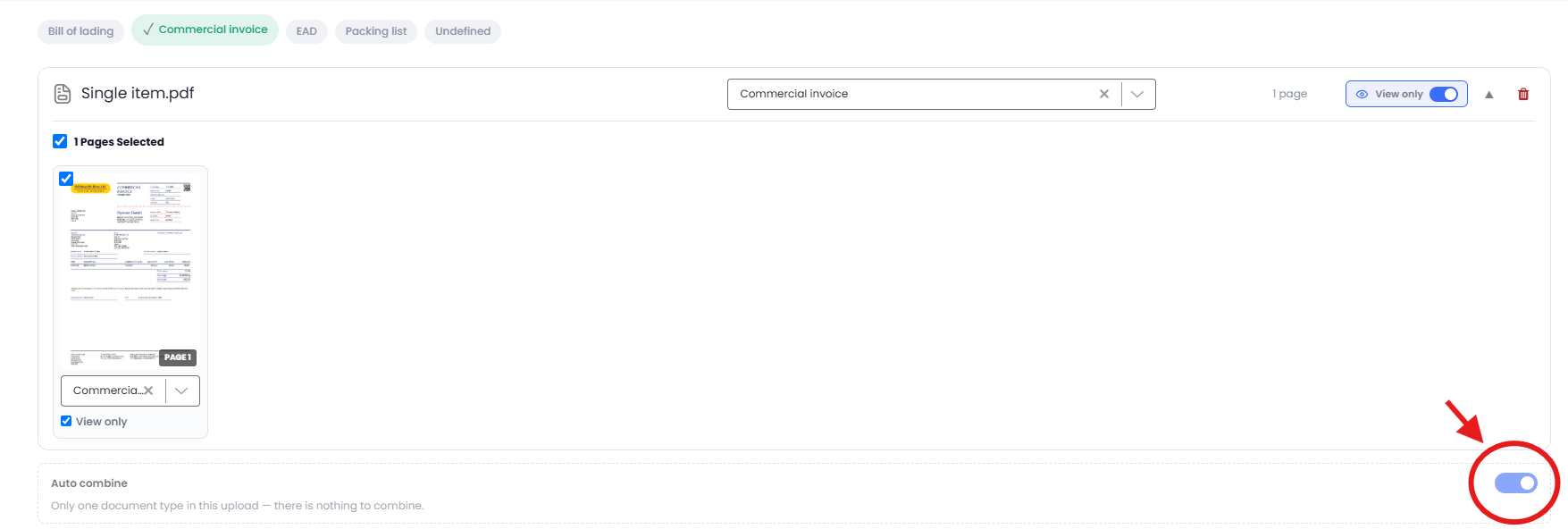
If you are uploading more than one document and want to combine the item-level data, enable the Combine checkbox.
If you have already created a Template, you can select the relevant template from the Template dropdown.
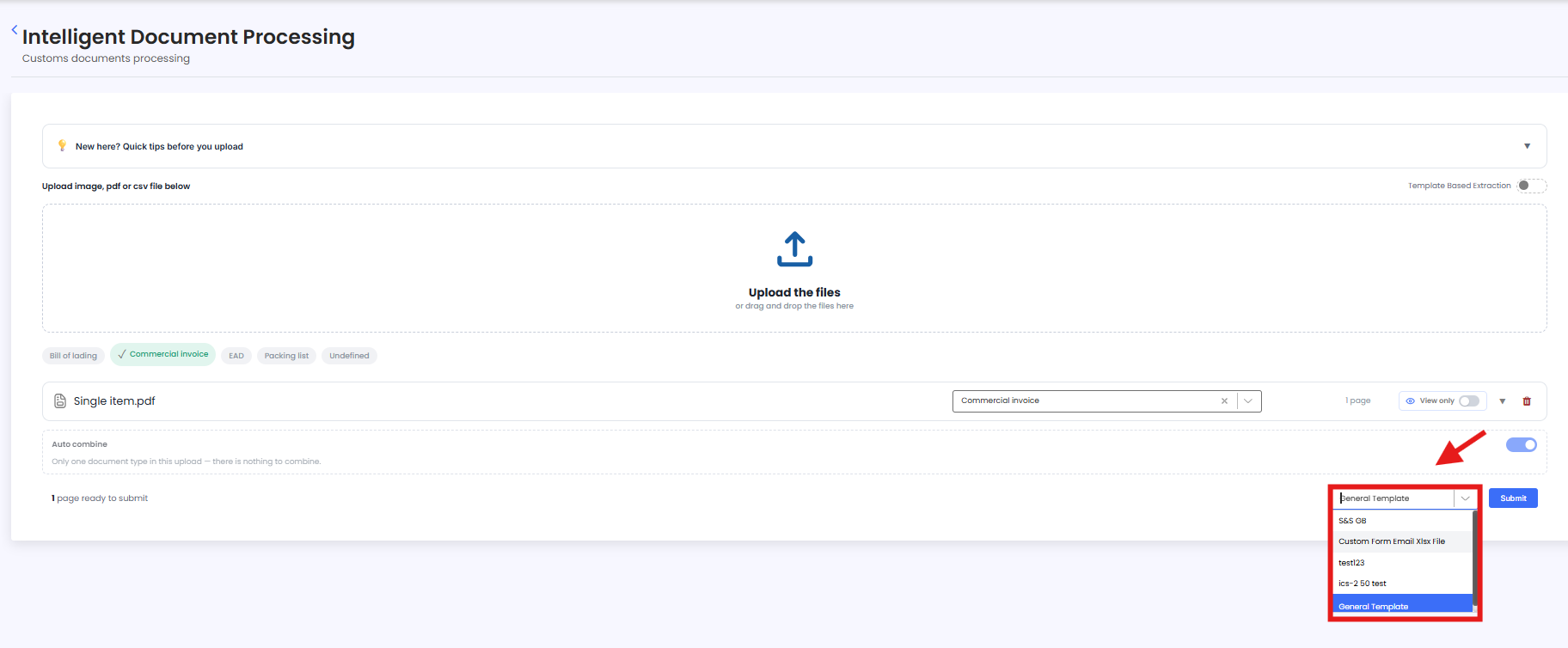
Once all the required options have been selected, click Submit.
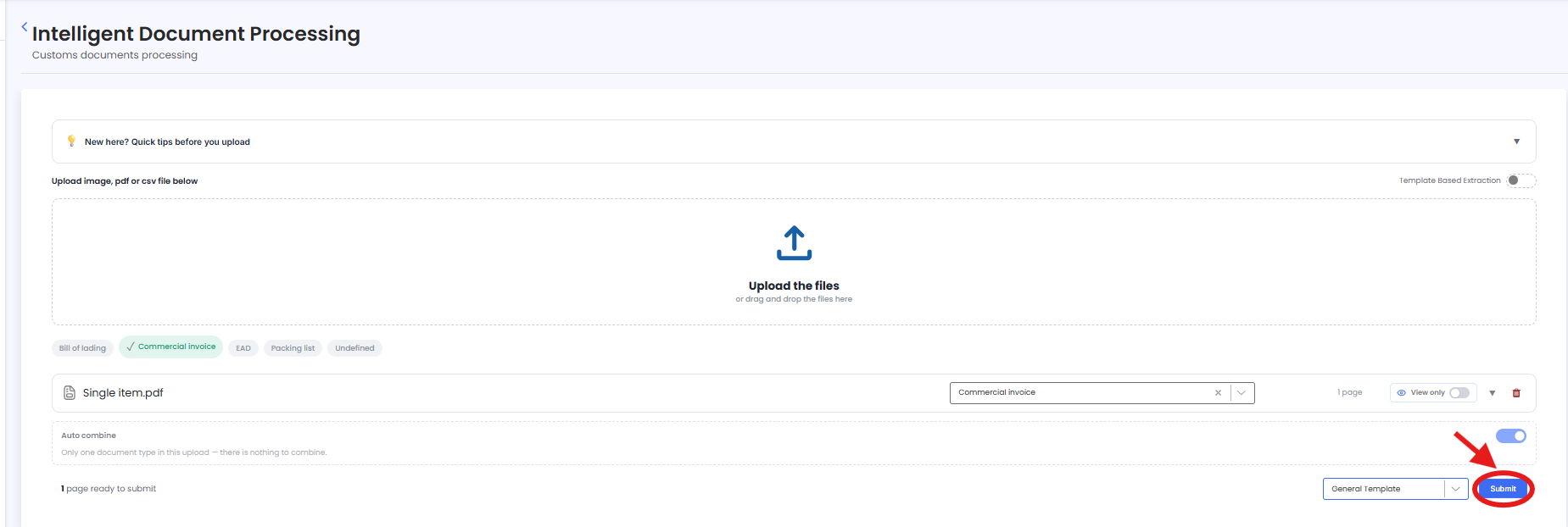
Your document will then be submitted for processing in iDP.
Need Help?
If you need assistance uploading or processing a document in iDP, contact the iCustoms Support Team: Contact Support Team
Was this article helpful?
That’s Great!
Thank you for your feedback
Sorry! We couldn't be helpful
Thank you for your feedback
Feedback sent
We appreciate your effort and will try to fix the article