Overview
Rules and custom validations in iDP allow users to enrich extracted data, apply specific processing logic, and validate information according to defined requirements. This helps automate repetitive data processing and ensure extracted data meets the required conditions.
How Do I Create Rules in iDP?
Rules can be created within the General Template or through Template Configuration, accessible from the Action Menu.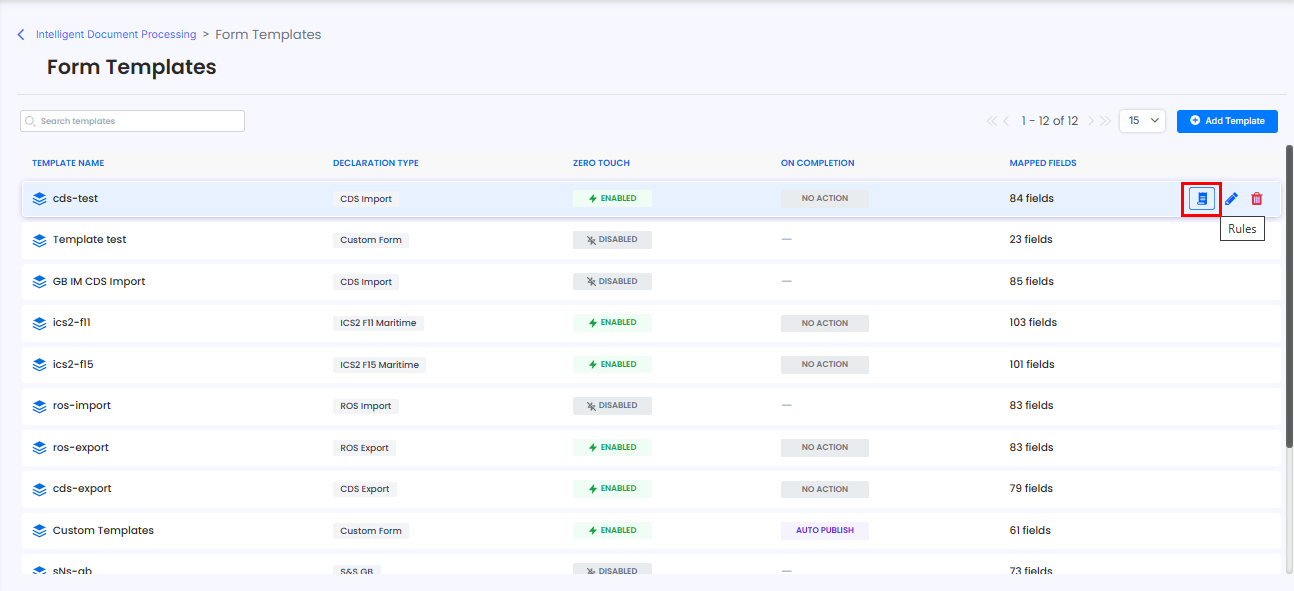
What Are Rules and How Do They Work?
Rules are used to enrich extracted data and structure it into a defined output format. They can perform operations such as:
Modifying values
Concatenating values
Replacing values
Applying specific conditions or assignments
For example, a rule can automatically assign a Procedure Code of 4000 to items originating from a specific country.
How Do I Edit or Manage Rules?
Rules can be created, edited, or deleted from the iRule Management page for each individual field.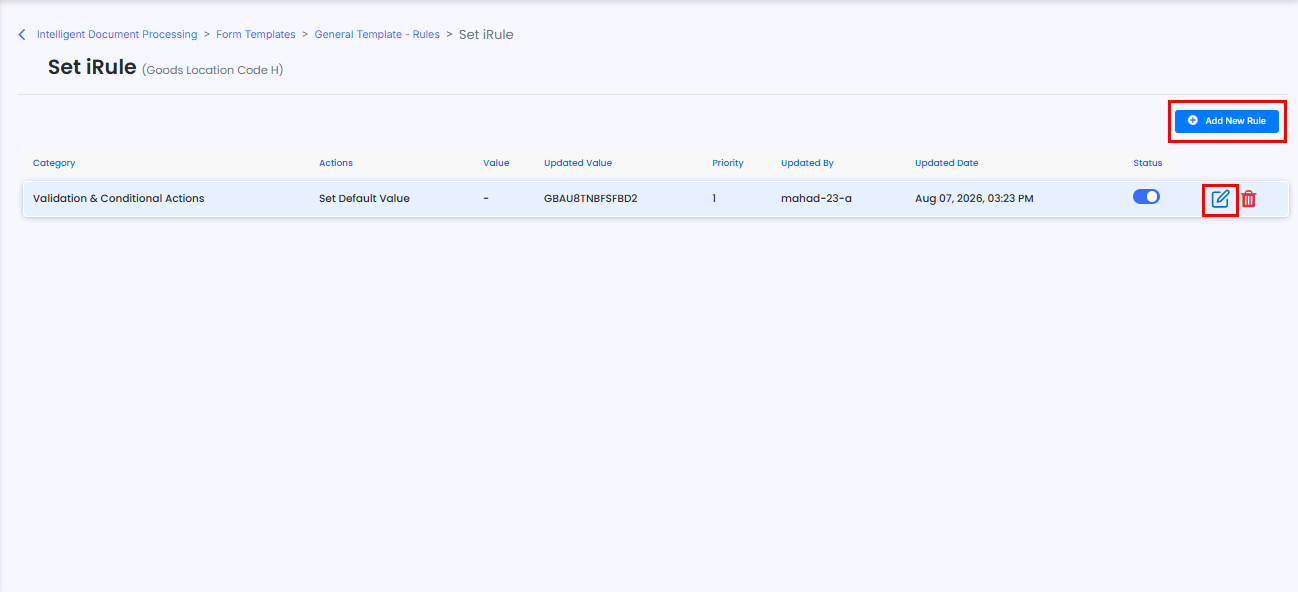
How Do I Set Validation Rules?
Validations can be added within the General Template Rules, including:
Mandatory fields
Minimum and maximum length
Range checks
Users can also define the validation severity as:
Required
Warn
Info
A corresponding error message can also be configured for each validation.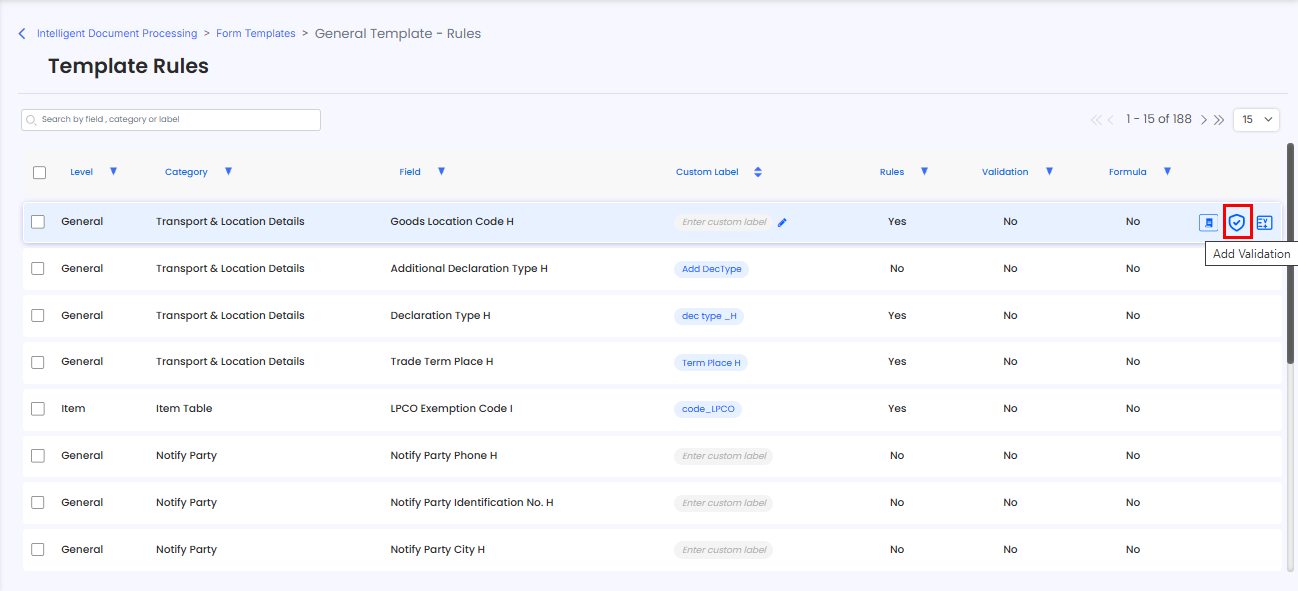
How Can I Add Custom Validations?
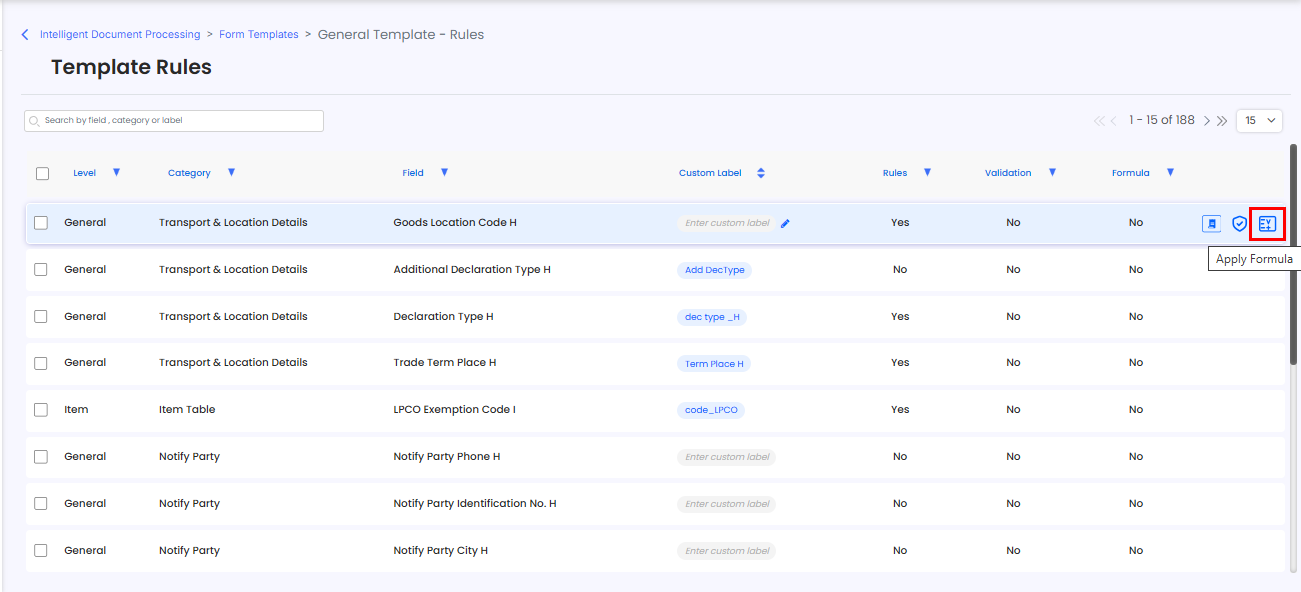
The Formula Builder can be used to configure custom validations, including the validation rule, data type, and dependency on a specific field to trigger the check.
Validations can be configured as:
Required – Enforces the validation.
Warn – Flags the issue but allows the user to continue.
Info – Provides informational feedback.
How Do I Enforce Required Fields?
Set the validation type to Mandatory and the severity to Required.
Can I Apply Stop Character or Format Validation?
Yes. Format validation can be applied using the Stop Character validation type. This allows users to define specific prohibited characters or delimiters for each field.
The extraction and validation engine will automatically reject, stop parsing at, or prevent those characters from being entered or saved.
How Do I Validate Data Ranges or Limits?
Set the Data Type to Date, select Range as the validation type, and define the Minimum and Maximum date values.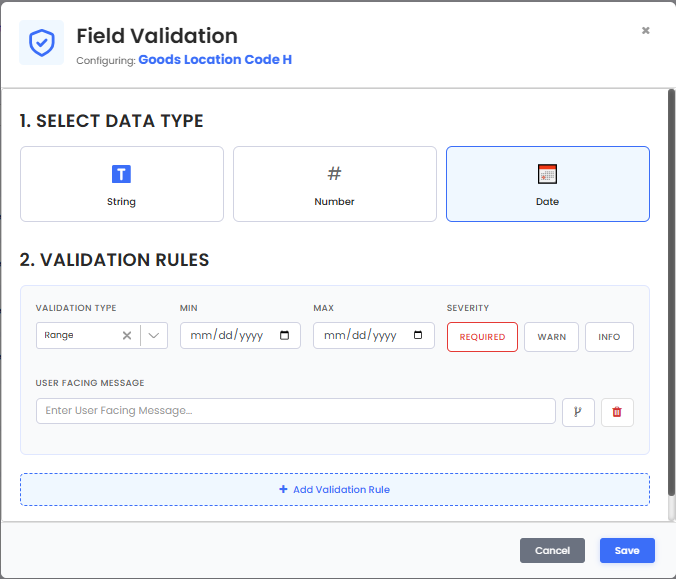
Need Help?
If you need assistance with rules or custom validations in iDP, contact the iCustoms Support Team: Contact Support Team
Was this article helpful?
That’s Great!
Thank you for your feedback
Sorry! We couldn't be helpful
Thank you for your feedback
Feedback sent
We appreciate your effort and will try to fix the article