Overview
iDP allows users to create and use Excel and CSV templates to structure, map, upload, and download declaration data. Templates ensure that data is mapped to the correct iDP fields when documents are processed.
How Do I Create an Excel Template?
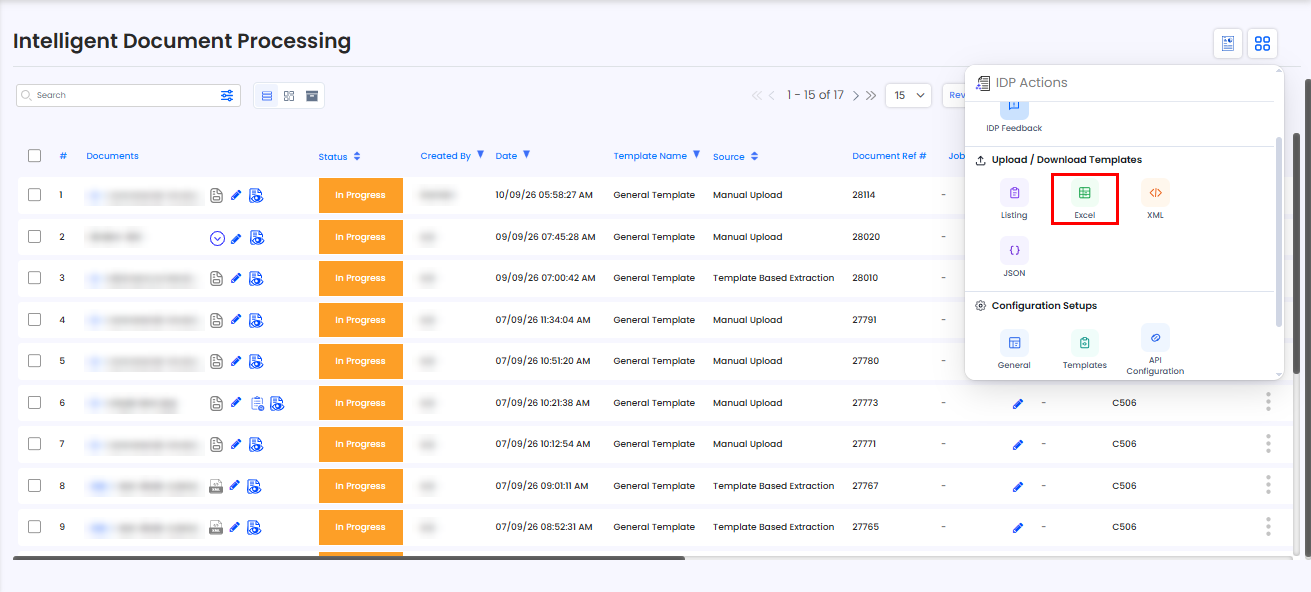
An Excel template can be created from the Action Menu:
Open the Action Menu.
Select Upload/Download Templates – Excel.
Configure the template according to your requirements.
How Can I Configure a CSV Template?
You can configure a CSV template during the Excel template creation process.
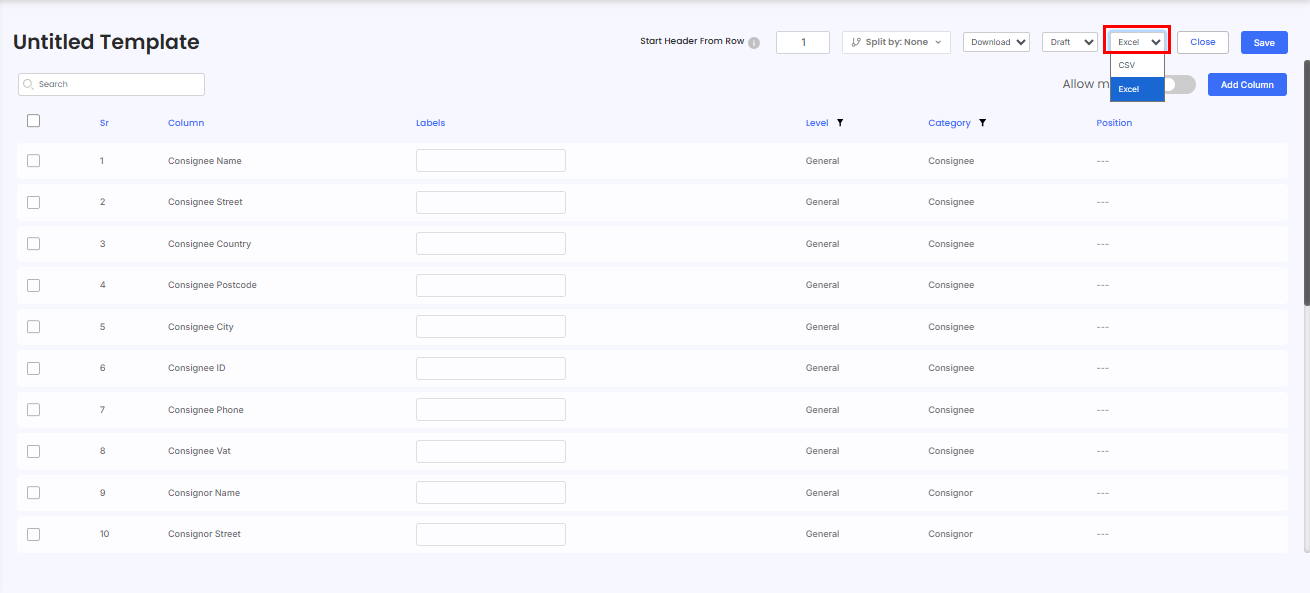
Open Upload/Download Templates – Excel from the Action Menu.
Select CSV as the Document Type.
Configure the required fields and mappings for the CSV template.
How Do I Map Fields in Excel or CSV Templates?
Fields in the Excel or CSV file can be mapped to their corresponding columns in iDP.
Once the fields are mapped, extracted values are automatically assigned to the relevant iDP columns when the template is used for uploading or downloading data.
How Does Template Upload Work?
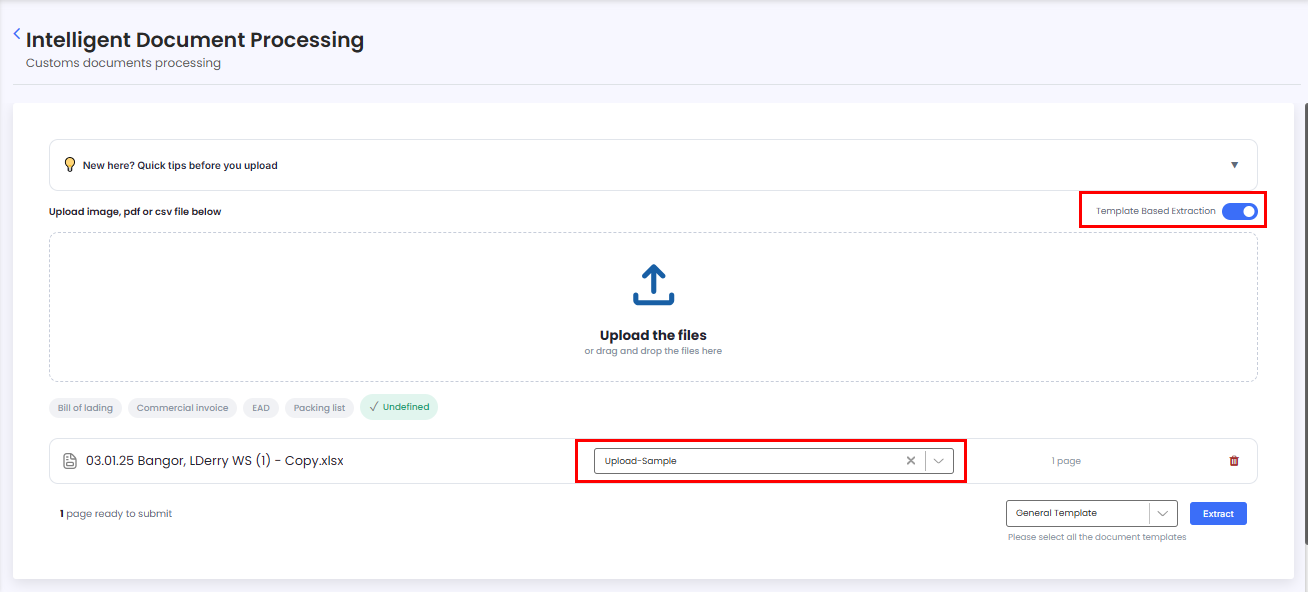
When uploading an Excel or CSV file:
Enable Template Based Extraction.
Select the relevant template.
Upload the Excel or CSV file.
The system uses the selected template configuration to map the uploaded data to the appropriate IDP columns.
Need Help?
If you need assistance with creating, configuring, or using Excel or CSV templates, contact the iCustoms Support Team: Contact Support Team
Was this article helpful?
That’s Great!
Thank you for your feedback
Sorry! We couldn't be helpful
Thank you for your feedback
Feedback sent
We appreciate your effort and will try to fix the article